
When you purchase a Hatch subscription through our website or Azure, an online workspace is created for your organisation. This workspace gives you access to your software and to the Hatch Products Admin Console (HPAC), where subscriptions and users are managed.
Your subscription may automatically renew at the end of each billing period. From HPAC, you can:
The purchasing email, as a primary billing contact, receives email notifications before renewals or payments are processed, giving you another opportunity to take action. If this email changes, please contact Hatch or click here to update this contact if you are the current billing contact AND you purchased with a credit card.
The person who originally purchased the subscription is automatically granted access to HPAC and able to manage billing and subscriptions.
Your organization can also assign additional administrators with different levels of access:
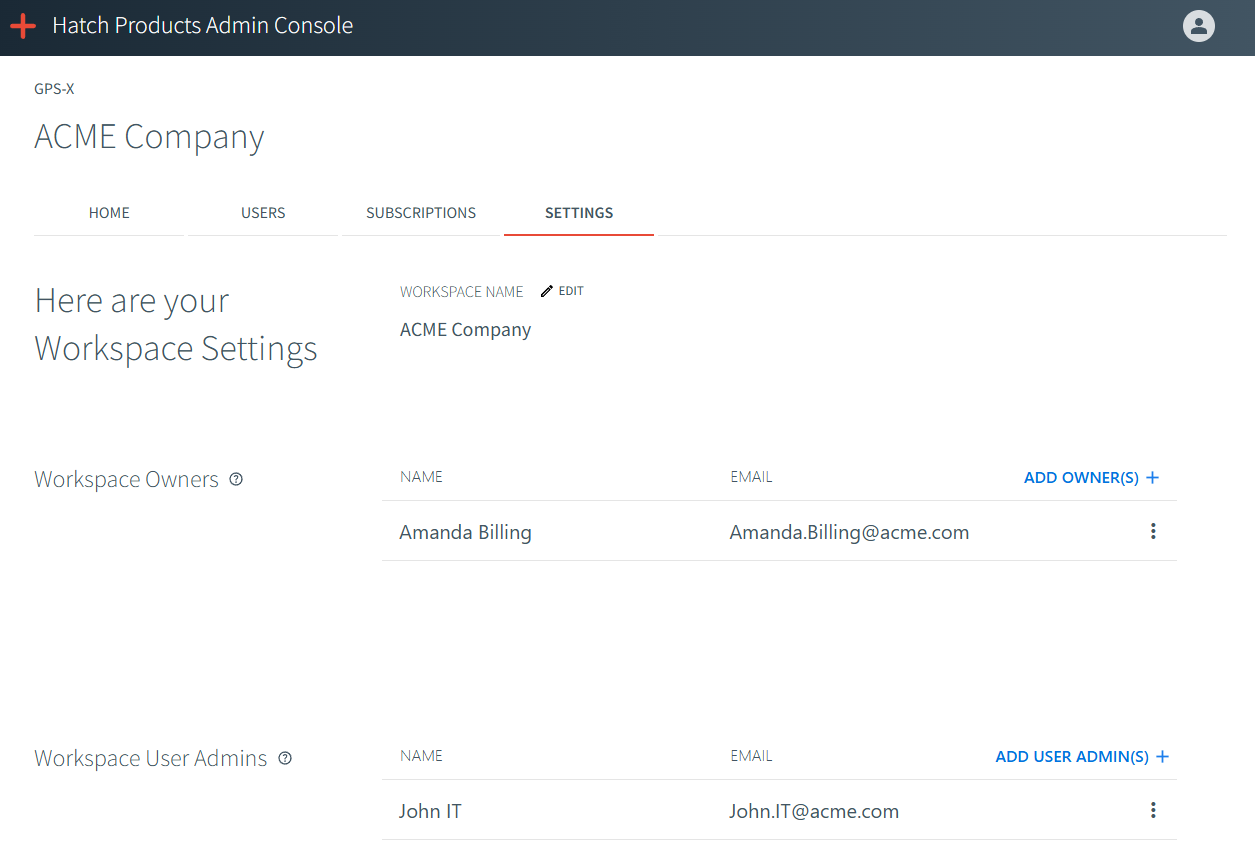
In HPAC, the Subscriptions page shows all subscriptions linked to your workspace, including:
Subscriptions may be billed through:
The billing channel determines how renewals and cancellations are handled.
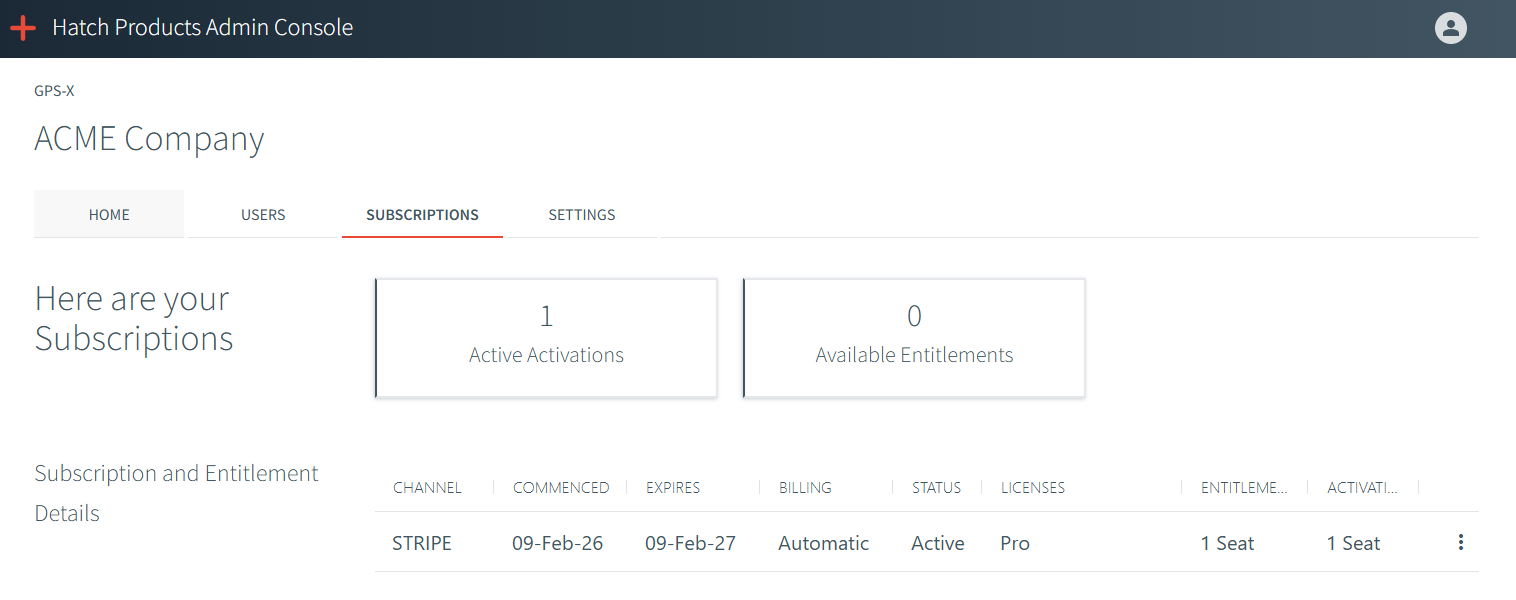
Each subscription has a billing status that tells you what will happen next:
If a subscription renews, the expiry date updates to the next renewal date.
You can cancel most subscriptions at any time before they renew. The process differs according to payment channel.
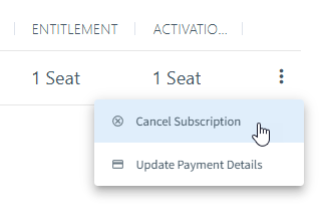
Once completed, the billing status will show Cancelled. Your access will remain active until the end of the current term.

Subscriptions purchased through Azure Marketplace must be cancelled by your Azure Administrator in the Azure portal. HPAC will update automatically once this is done.
If you have not confirmed a renewal with Hatch, no action is required — the subscription will simply expire.
Hatch does not store your credit card information. All payments are securely managed by Stripe.
To update your payment details:
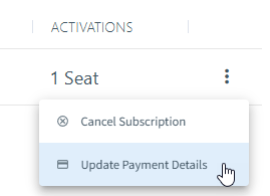
The new payment method will be used for future renewals.
If you're unsure which subscription applies to you or need assistance with billing, contact Hatch for help.