CHAPTER 15
Introduction
Python integration directly into GPS-X allows you to build and run custom Python scripts directly within GPS-X. By allowing custom scripts to be run in GPS-X, you can use the tools available in Python to extend what is possible in GPS-X. While the applications of GPS-X are diverse, it may not always be built generally enough to provide the exact analysis or data visualization options you would like for your project. By using Python, you can do things such as create custom plots, introduce new types of statistical analysis and automate repetitive tasks in ways that are not possible using only GPS-X.
This chapter covers the tools that have been built into GPS-X that allow you to control Python. The material includes an explanation of the Python dedicated menus in GPS-X as well as the custom Python commands that are recognized by GPS-X.
In general, this chapter assumes a more advanced level of understanding of both the GPS-X system itself as well as the Python programming. To use what is presented in this chapter, it is helpful if you have and understanding of the following:
· Python programing language
· Java programming language
· An understanding of how GPS-X preforms simulations
Python integration is an optional feature in GPS-X. If you do not have the Advanced Tools package, please contact Hydromantis/Hatch for information about pricing.
The Python Script Manager
The Python Script Manager is used as the interface between GPS-X and Python. This tool is where you add, remove, and run Python scripts in GPS-X.
The Python Script Manager is accessed through the Tools menu on the main menu bar. GPS-X must be in Simulation Mode to open the Python Script Manager.
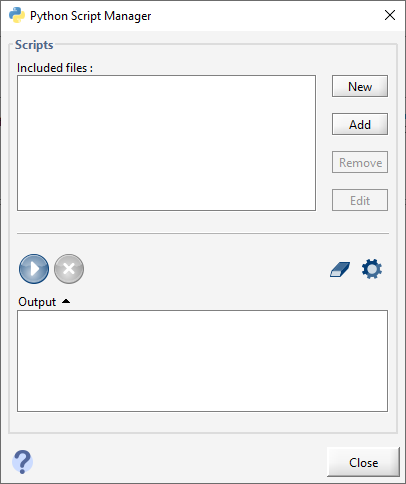
Figure 15‑1 - The Python Script Manager
To create a new Python file in GPS-X, press the New button on the Python Script Manger. This will open a file manager window where you can choose where to save the script and what to name it. GPS-X will automatically apply the .py extension to the end of the file to signify that it is a Python Script file.
When a new file is created using the Python Script Manager, the path to the file will be added to the Included files section of the Python Script manager.
The Python Script Manager can also be used to regulate the Python script pathways available in the current layout by using the Add and Remove buttons.
Editing Python Scripts
When a Python script is selected in the Python Script Manager, pressing the Edit button will open the Python script in the Notepad text editor by default. An unedited GPS-X Python script file produced by GPS-X can be seen in Figure 15‑2.
In the Python file generated by GPS-X, four functions will be included that are recognized by GPS-X when a Python script is run by the Python Script Manager. These functions are:
start()
The start function is called exactly once in each simulation initiated by the Python Script Manager. The start function is executed at the start of the simulation before the first communication interval.
cint()
The cint function is called multiple times in a GPS-X simulation initiated by the Python Script Manager. The cint function will be executed at each communication interval in the simulation. A communication interval occurs at both the start and end of each simulation.
eor()
The eor function is called exactly once in each simulation initiated by the Python Script Manager. The eor function is executed at the end of the simulation after the final communication interval.
runSim()
The runSim function in Python initiates a GPS-X simulation. A new GPS-X simulation will be started each time the runSim function is called in the Python script.
For a complete list of the Python functions recognized by GPS-X in a simulation triggered by the Python Script Manager and their functionality, refer to Appendix A at the end of the Chapter.
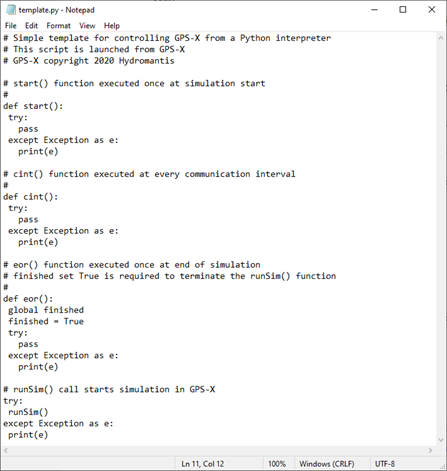
Figure 15‑2 - Python Script Template File Generated by GPS-X Open in Notepad
Running Python Scripts
Python scripts in GPS-X are run through the Python Script Manager. To run a Python script:
|
|
1. Ensure the Python script is selected in the Include files menu. The selected script is indicated by the file being highlighted blue. |
|
|
2. Press the Run Script button to have the Python Script Editor execute the selected script. |
|
|
3. At any time while the Python Script Manager is running a script, you can terminate the script by pressing the Abort Script button. |
|
|
4. At the end of the simulation, any results printed in the Python script will be displayed in the Output menu of the Python Script Manager, which can be opened by clicking on the output arrow below the Run Script button. If an error is experienced while running the Python script, it will be displayed here. Additionally, output displays in GPS-X will retain the results of the simulation when the script has finished running, allowing you to navigate the simulation results in GPS-X directly. |
|
|
Note: When rerunning a simulation, the Remove all Variables button can be used to reset the variable values from memory. |


Python Settings
|
|
In the Python Script Manager there is a button to access the various settings available for the Python instance used by GPS-X. This menu can also be accessed by going to View > Preferences on the main toolbar and selecting the Python tab. |

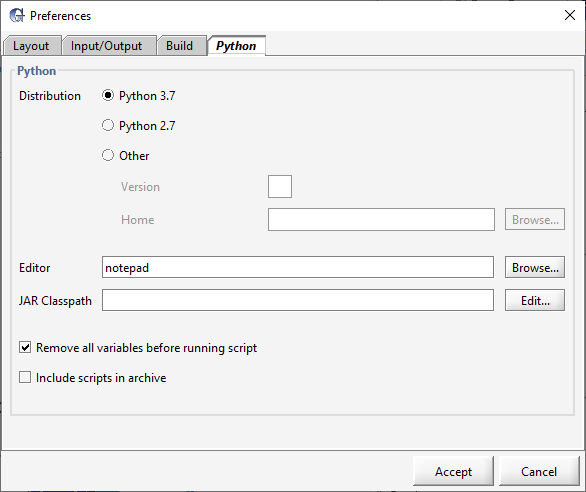
Figure 15‑3 - Python Preferences Menu
Python Distribution
The user has the ability to specify which distribution of Python they would like to use in GPS-X. Python has two versions that are currently supported: Python 2 and Python 3. The GPS-X instillation includes both versions 2.7 and 3.7 of Python. By default, Python 3.7 will be set as the active Python distribution used by the Python Script Manager. The user can easily toggle between these two distributions from this menu.
If you would like to use a Python distribution other than 2.7 and 3.7; selecting the other option will allow you to specify the distribution. You must provide GPS-X with a path to the instance of Python on your machine that you would like to use.
Editor
When using the Python Script Manager to edit Python Script files in GPS-X, the file will be opened in the Notepad text editor by default. GPS-X has the ability to use any text editor you would like. To set a new default, press the Browse button next to the Editor entry field and provide GPS-X with a path to the Python Editor you would like to use.
JAR Classpath
There are instances where even Python is too limited to achieve what you would like. GPS-X accommodates the use of Java JAR files in Python. To include JARs, you must provide GPS-X a pathway to the JAR files. To do this, press the Browse button next to the JAR Classpath entry field. You can provide GPS-X with either a path to a single JAR file or a folder of multiple JARs.
Incorporating Python in a GPS-X Macro
Python can also be incorporated within a GPS-X macro to allow Python functions to be incorporated directly into a standard GPS-X simulations. Python functions executed within the ACSL code can directly pass information directly between Python and GPS-X, allowing users to interface Python functionality directly with existing GPS-X macros and standard GPS-X functionality. Python functions added this way will be executed at the same frequency as the macro section they are called within.
Python functions can be called within the GPS-X macros using the following ACSL command:
call python(‘pypath’, ‘pyfn’, ninputs, nreturns, ‘input1’, ‘input2’, …, ‘return1’, ‘return2’, …)
Where:
· pypath string: Path to the Python file containing the function to be executed. Exclude the .py extension from the provided path. The pypath argument defaults to the folder where the layout has been saved allowing both relative and absolute paths to be provided as the pypath argument. If the first character of the path is *, the GPS-X instillation directory will be used as the starting directory. Either ‘/’ or ‘\’ can be used as the path separator in the pypath argument.
· pyfn str: The name of the functions to be called from the pypath py file
· ninputs int: The number of arguments to be provided to pyfn. ninputs can be ≥ 0
· nreturns int: The number of return values from pyfn. nreturns can be ≥ 0
· input# str, bool, int, array, float: Comma separated input arguments to passed to pyfn. The number of input arguments must match ninputs. Constants or ACSL variables representing scalars, arrays or array elements can be passed
· output# str: Name of the ACSL variable that the Python return value will be assigned to. Return variables can represent scalar or array variables. Python lists must be assigned to a 1-Dimensional ACSL array. A column ordered Python list must be assigned to a 2-Dimensional ACSL array.
When adding Python calls to GPS-X macros, consider that:
· All quoted arguments must be provided in single quotes (e.g. ‘arg’)
· Multiple Python calls can be made in a single macro file
· If a python call is made in the initial section of the macro, the Python call should not be executed in the preinitial stage. To function is called outside of the preinitial stage, pass the call as:
If(.not.preinitial) call python(*args)